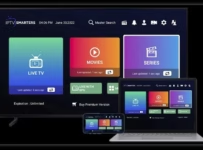
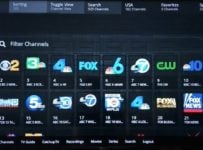
The SO Player App/APK (a.k.a. SOPlayer) has been a popular app download for some time, but has lost some of its edge in 2025. In short, this IPTV application is designed to help streamline the delivery of live TV channels and on-demand content from a 3rd-party service provider when downloaded and connected to their servers. Also see SO Player Login and Provider ID Guide.
To make things work, login credentials are needed by the IPTV service provider. The app has a clear interface, but is now only compatible with certain smart TVs and can be sideloaded to Android-based devices (TV/Box/Phone/Tablet).
In addition, the SO Player APK version of the App can no longer be found in the official App Stores. The APK makes it possible for the end-user to download and install the media player on Android-based devices, but not iOS/Apple devices.

What Is the SO Player App?
SO Player is a media player and middleware application designed to streamline the delivery of streaming content coming from an IPTV service provider that uses an IP Lock system. It’s used as a go-between the compatible streaming device and the end-user to watch TV over the Internet. The application can also be referred to as an IPTV app or IPTV APK. More on the APK later. Anyone worldwide can download the free SOPlayer media player.
What Is IP Lock?
The IPTV provider establishes an IP Lock system when the SOPlayer application connects to the IPTV servers. It prohibits the user from changing their IP address, whereas the application is set up to lock up if the user tries to change his/her IP address. It’s a security measure used to ensure no shared login account is permitted.
What the SOPlayer App Does (and Doesn’t Do)
Once the media player is installed on a compatible device, such as a smart TV or Android-based device, no live TV channels or VOD will be delivered. The App doesn’t come pre-packaged with any content.
It’s the sole responsibility of the user to find a subscription-based IPTV provider that can deliver the content to the SO Player, so that live channels and VOD movies/TV series can be played to watch online. The application has a very limited number of features, but its ease of use makes it attractive to newcomers to Internet TV.
Is the Application Still Supported?
Yes, by the IPTV provider, not so much by the developer. When SO Player first launched and made available to download, there was a developer website. The developer’s website disappeared some time ago, but it’s unclear if the app remains supported by the developer. This means we are not sure if there are ongoing bug fixes and version upgrades.
On the other hand, the SO Player TV/VOD service does support using the application, but they are not the developer, the app designer, nor can they resolve technical issues, such as bug fixes.
During 2025, SO Player was removed from the official app stores, which means that it can no longer be downloaded to iOS/Apple devices or Android devices. As for the latter, SOPlayer must now be sideloaded to Android-based devices.
Devices That Support the Application
Android Devices and Firestick (Sideloading)
SO Player can be sideloaded to the following:
- Android-based Devices: Android TV/Box, Smartphone, Tablet
- Devices with Android OS: Firestick, Fire TV, Fire Cube, NVIDIA Shield, etc.
This requires more steps to download and install SO Player, which also includes downloading/installing the Downloader app to sideload SOPlayer. The IPTV provider supporting the app will provide the APK URL to sideload SO Player. See How to Download SO Player on Firestick.
Smart TVs (LG & Samsung)
Compatible smart TVs include the LG and Samsung brands, maybe certain Sony brands. The steps to download/install are fewer than installing the SO Player on Android-based devices and devices with the Android OS system. It’s as simple as going to the smart TV’s built-in app store to search for the app and download it.

Why the App Is Not Available for iPhone
As explained earlier, SO Player was removed from the Apple App Store. You cannot download it to any iOS/Apple devices. Unless the app is already installed on those devices (iPad, iPhone, Apple TV), it cannot be used. We don’t know if the developer removed the app from the official app stores or if the app stores removed the application.
How to Download the SO Media Player Safely
Why SO Player Was Removed from App Stores
It’s unclear why SOPlayer was removed from the app stores. We’ve heard from various IPTV services that supported the app, saying the developer isn’t going to continue support. So we expect the app to decline in functionality over time if this is the case. As a result, many IPTV services supporting the app have jumped ship and are now supporting alternatives. See below to learn more about the alternatives.

Official vs Unofficial Download Sources
Take precaution downloading the app from unknown websites or app download sites. It’s recommended to start by finding the ideal TV/VOD service supporting SO Player. Again, they will provide the APK version of the app, which is more trustworthy to use because they tested it. It’s also safe to download the app from the smart TV’s internal app store.
Alternative IPTV Apps with More Device Compatibility
Users who have Android-based devices, devices with the Android operating system, or smart TVs (LG, Samsung, Sony) can install SO Player. As for those who have other devices, such as iOS/Apple, Roku, or a Computer they want to use, they look at some of the app alternatives available. These apps have the same function, require similar activation/login credentials, and similar IPTV providers.
In fact, you might say that the only difference is in the brand name of the application, and IPTV service delivers all the content. See alternatives below:
- Nora GO: Is supported by Setplex, the developer, and has a website for IPTV providers. Compatible with more devices, including iOS/Apple. Learn More Here
- XPlay: The developer is unknown, and no website can be found. Compatible with Roku also. Can be downloaded directly from the Amazon App Store for Fire devices, unlike SO Player and the other alternative apps. Find the XPlayer IPTV service here
NOTE: The links to both IPTV services directly above support both the Nora GO and XPlay apps.
SO Player APK Explained
What an APK Is and Why It’s Needed
The abbreviation APK means Android Package Kit, which is the APK version of the App itself. The APK version is used to install on Android-based devices–see Devices That Support the Application above.
You can also think of it as an app file on macSO or an .exe file on Windows OS. If the App itself cannot be in the official app stores, the APK version can be used install and run.
What is an IPTV App (APK)?
Both versions are designed to play IPTV streaming content. Here are some examples:
- Provide EPG (Electronic TV guide or programmable guide)
- Stream VOD TV series & movies
- Stream live TV channels
- Load playlist, such as Xtream Codes and/or M3U
Common IPTV Apps (APKs) supported by IP Lock IPTVs
- SOPlayer
- Nora GO
- LUX Player
- XPlay
There are other Apps/APKs supported by No IP Lock IPTVs
- Tivimate
- IPTV Smarters Pro
- Perfect Player
- And so on
Why Is the IPTV APK Needed
When the IPTV App cannot be found in the official app store, many IPTV service providers provide the APK version, which can be found in the APK directory. This is strictly for Android-based devices that will enter the APK URL into the Downloader app to begin the download and installation process.
In essence, the APK performs or functions the same as the App player, such as:
- Shows categories & guides
- Helps manage, organize, and stream live channels & VODs
- Connects to the IPTV provider servers
Is the APK Version Safe to Install?
Trusted App Download Sites:
- Apple App Store
- Google Play Store
- Amazon AppStore
It depends on how you install it as well as where the APK comes from. If the application cannot be found in those stores, but there’s an APK version that can be used to download it outside of them, it becomes questionable. Still, it’s left up to you to decide. Our guess is there are 10s of 1000s of individuals worldwide downloading APK, including the SO Player APK download.
How to Download and Install the App
Installing the APK on Firestick (General Overview)
For the Fire TV Stick 4K or 4K Max, the SO Player APK installation process is straightforward. It requires enabling apps from unknown sources and installing the Downloader tool. The process generally takes a few minutes to complete.
- In the Fire TV Stick Settings, enable “Apps from Unknown Sources
- Search, fine, download, and install Downloader
- Enter the required APK URL from the IPTV provider
- Download/install SOPlayer
- Launch the IPTV player and enter the activation/login credentials
👉 For a full step-by-step guide with screenshots and video, see our detailed tutorial on installing SO Player on Firestick.
Installing on Android
There are a number of Android-based devices, such as Android TV, Box, Smartphone, and Tablet. We are not going to provide the steps for each device here. What you can do is head over to YouTube and try to find a video. Search for… SO Player on Android
You can also use ChatGPT.com and ask AI to provide the steps to download and install.
Account Login Firestick
After the application is downloaded and installed, it requires the activation/login details from the IPTV provider to activate and use SO Player. This comes with either a subscription or a trial that allows you to activate SOPlayer with a provider.
Common App Issues and Fixes
1. App Doesn’t Open/Crashes
Issue:
- Cache/Data corrupted
- Outdated App version / Old device
- Device memory overload
Fix:
- Clear the SO Player App data & cache or…
- Uninstall/Reinstall the App
- Reboot/Restart the device
2. Invalid Login (Invalid/Error)
Issue:
- Incorrect login details
- Account not activated by IPTV provider
- IPTV server down
Fix:
- Make sure login details are entered correctly
- Contact support
- Refresh/Restart the App after activation
3. Consistent Buffering, Freezing, Non-Working Channels
Issue:
- ISP is throttling streaming performance or blocking
- Slow Internet connection download speed
- WiFi interference
- IPTV service overloaded
Fix:
- Use a VPN service
- Use 5 GHz WiFi or try an Ethernet adapter
- Removed unused apps previously installed
- Restart the modem/router
- Use the latest device version, such as Fire TV Stick 4K Max
Note: Visit YouTube.com to watch videos that can help resolve the issue, such as IPTV buffering/freezing. Use ChatGPT.com to help troubleshoot and resolve issues. Enter all the details and ask how to resolve the issue.
FAQ Section
Q: Is SO Player an IPTV Service?
A: No, it’s not. It’s an IPTV application only that doesn’t come with any live channels or VOD. For that, you need a subscription-based IPTV service. We recommend reading our SO Player IPTV Complete Guide.
Q: Can SOPlayer be downloaded for free?
A: Absolutely, anyone worldwide can download the app for free. But to use it to watch TV online requires a trial or subscription from the IPTV provider.
Q: Is SOPlayer legal?
A: The media player itself is legal to download. It’s not a content holder that delivers live channels and VODs. So from that standpoint, it’s legal.
Final Thoughts
Both the SO Player App download and APK continue to leave users with a reliable IPTV media player, and more at ease when knowing how a provider-based streaming system works. Whether the App is installed via a supported smart TV with an internal app store or by sideloading the APK version to the Android-based device, both provide a cut-and-dry way to stream TV/VOD content across a low number of devices.
Just know that the setup does require a subscription-based TV/VOD service to get the login details to connect the App/APK to the servers. Users who find a good, reliable service can reap the reward when enjoying a great viewing experience.
For those who don’t mind the extra steps to sideload the APK, SOPlayer remains a good, practical option. Also, read our article on the SO Player Subscription & Pricing Guide.