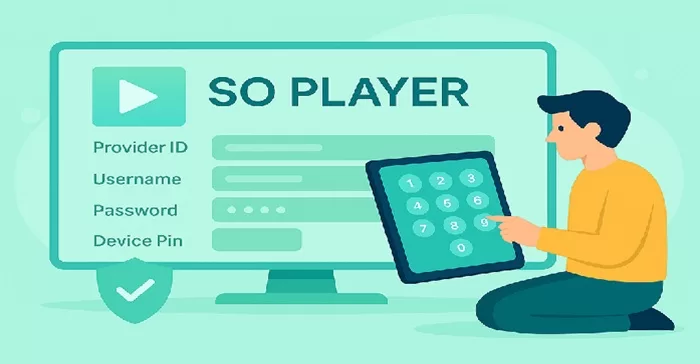
Getting started with this application after downloading it requires the SO Player Login, which is also called the activation/login credentials that provide the Provider ID, username, password, and 4 device PIN codes. The activation credentials come from a 3rd-party IPTV service, which is the only way the user can activate and use SOPlayer. The application itself does not deliver any live channels or VOD movies/TV series.
In this guide, we will explain everything to fully understand each part and what’s needed, including the issues that could arise, so there’s no confusion before taking the next step. When there’s no clear understanding, users tend to get confused, make mistakes, and waste time. In turn, they create unnecessary issues for themselves that we want to eliminate.
The question is, are you willing to take the time to learn the right way or be like the others that dive in and purchase the subscription, only to get lost, confused, and frustrated later? If you are new, you’ll learn everything. If you already taken the plunge, you’ll learn more.
To Clarify Further…
SO Player (media player) is free and can be downloaded to a compatible device before or after registering for the trial or subscription. However, we suggest installing the media player before doing anything else to make sure it installs correctly on your device.
It must be understood that the SO Player application is not a standalone TV app and comes prepackaged with all the content to watch online. Everything starts and ends with the streaming TV/VOD service. They provide everything needed, including the login to get set up, the download URL or shortcode, activation, and support primarily for the content, not so much the media player.
Only the original Provider ID that the SO Player IPTV service provides can be used. No other 3-digit Provider ID number will work. The login (activation credentials) is sent through the SO Player Subscription.
Keep in mind that we are not referring to: SO Play in the Google Play Store or in the Apple App Store. Neither one is the player to download and install.
How Login Works in the SO Player App
- Download/Install SO Player on the compatible device
- Get the trial or subscription from the IPTV provider
- Enter the activation/login details into the player
- Full access to watch live channels & VOD movies/TV series
Activate SOPlayer with a Provider
Why There’s No Username or Password
If expecting to get the username and Password from the app download source, you are sadly mistaken. SO Player has been limited to fewer compatible devices now. No longer can it be downloaded from the official app stores, which never provided the Provider ID, username, password, and device PIN codes in the past.
The media player is free to download, but the content must be paid for. This is when an IPTV provider is needed to get the username and password, which are part of the activation/login credentials
SO Player Login After Activation
Once the media player has been activated, it’s now ready for use, whereas the user has access to 1000s of live TV channels and 10s of 1000s of VODs. The player stays activated until the length of the subscription ends, such as a 1-month plan. You can log in or log out during this period.
However, there is no need to log out of the media player. When launching SO Player again, it remembers and automatically logs in the user.
What Is a Provider ID?
For the user, the 3-digit number links the SO Player media player to the correct IPTV provider. For the provider, it routes the media player to the correct service to load the channels/VOD content and EPG data. It can also determine which content library the end-user has access to, and prevent unauthorized use of the app.
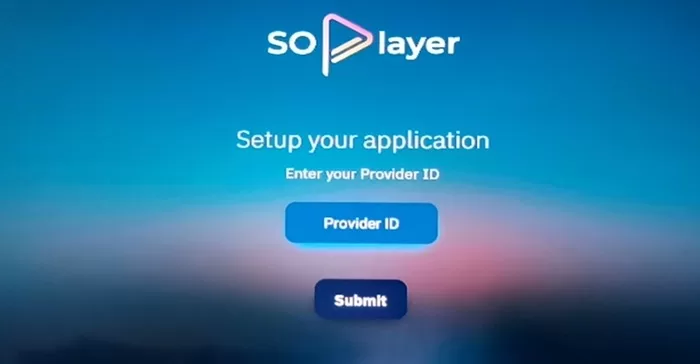
Where to Get Your Provider ID
Many individuals find themselves forgetting or losing the Service Provider ID. This is because they are not well organized or have not received the ID from the IPTV service. Take a look below to find out how to get the ID:
- New subscribers. Check your Spam/Junk mail folder for the IPTV service emails. One will have the activation/login credentials, which include the Provider ID
- Current subscribers. Find the email you received from your IPTV service. Meaning, the website you went to pay your money for your subscription or trial. In your email account, check the Sent section and History to find the email and/or IPTV website
- Someone else signed up/subscribed for you. Contact the person who set up your IPTV service account and paid for or entered into the trial. If that person used his/her email address, contact that person to get the Provider ID
- Contact IPTV service directly. You should already know the name of your IPTV service and where to find its website to get support. This is where you pay your money and create an account. The emails they sent you will help. One email will include the ID. You also need the Username, Password, and Device PIN code
- SO Player app is installed. If you entered the Provider ID in the app previously, then you might find it there when opening the app
Note: See Provider ID numbers further down. Try 836 and see if this will get you into the app, but you’ll need the Username and password or PIN Code.
The next step comes when reading our article on the SO Player Subscription with activation/login.
Workaround if Provider ID isn’t Found
You can sign up and subscribe or enter into a free trial with any SO Player TV service. This is why you should keep a bunch of them on hand, should you want to switch to another. They are all pretty much the same. With the app already installed on your device, you just need a new set of activation/login credentials (SO Player Provider ID, Username, Password & PIN Codes).
You can skip ahead to find the links below to subscribe to another SO Player streaming TV/VOD service. This time, keep yourself well-organized and save those emails from the service. Get in the habit of checking your Spam or Junk mail folder when expecting important emails, even if you are not expecting any emails.
The ID will have 3 numerical digits. Understand that the streaming content comes from the IPTV service or streaming TV service that delivers all the streaming content, whereas the app must connect to the service. Read below regarding the provider ID number, as I break some things down so that you fully understand.
Provider ID 455, 446 & 836
You may not find any IPTV services using Provider ID 455 or 466 to subscribe. These are the older IPTV services where many are no longer accepting new customers or have closed down. New SO Player IPTVs are using Provider ID 836, so you must go with the latest.
There is no need to surf the web for the ID. You should have an IPTV service subscription. You cannot activate the TV app and service any other way to watch streaming TV channels and VODs. Should this be an attempt to hack into the app and service, you are better off going elsewhere.
Some individuals search the web for an IPTV service for SOPlayer Provider ID 455 or 446. I suppose the idea is to avoid any EC21 error or activation issue with the SO Player when using the new activation credentials from the new IPTV service. Perhaps SO Player is installed on the smart TV, and you want to continue using the app there.
Additional Info…
Many SOPlayer IPTVs nowadays are using Provider ID 836. I have no idea where you can find one that uses Provider ID 445 or 446. No doubt you’re having a difficult time finding one. What I suggest you do is sign up for the free trial with a new SO Player IPTV service, no matter what the Provider ID is, and test.
If you run into an EC21 error or any error where you cannot activate the SO Player, then contact the new SOPlayer IPTV service. They can reset your device’s MAC address. Once they do that, you should be on your way to watching your favorites online again. See links to other SO Player TV/VOD services below, where you can subscribe or enter into a trial.
SO Player Username and Password, Plus PIN Codes
When registering to get the activation/login credentials to activate and use SO Player to watch TV online, the Provider ID, Username, and Password must be entered. Several device PIN codes will be provided that allow using one PIN code per compatible device. This is how the IPTV service can identify each device with SOPlayer installed, whereas a restricted number of devices can be used at one time.
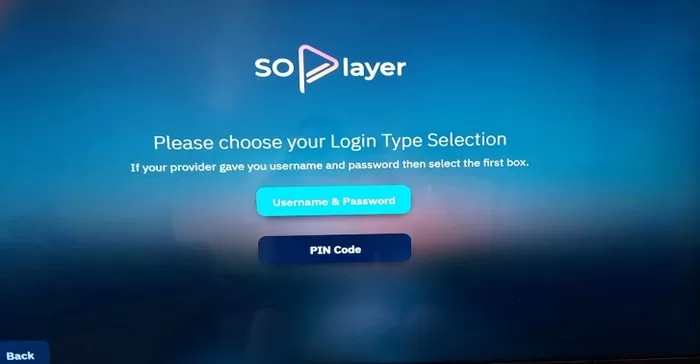
After registration, the user will receive a few emails from the IPTV service. One of those emails will have the activation/login credentials. You may also get the credentials immediately after completing the registration for the trial or subscription when taken to the final web page.
A Breakdown of What Each Credential Does:
- Username & Password: This allows the user to log in and have access to the provider portal, billing, and renewal pages. Also useful when needing to reset access. As for the provider, it allows subscription status tracking, support verification, access rules, and account management
- Device PIN Codes: Allows users to connect multiple devices, whereas each device can be identified at the provider’s end. One PIN code per device can be used, which confirms device ownership and speeds up the setup. The provider uses it for pairing, to prevent sharing accounts, enforces device IP, or location limits
| Credential | Entered Where | Purpose for User | Purpose for Provider |
|---|---|---|---|
| Provider ID | SO Player app | Connects app to IPTV service | Server routing & access control |
| Username & Password | App or provider portal | Account access & billing | Subscription & account management |
| Device PIN Code | Provider website | Easy device activation | Secure device pairing |
Fixing Login and Activation Issues
Issues can occur from subscription problems, outdated app versions, device-specific glitches, failed logins, or application crashes. Check below to see how to resolve issues with SOPlayer:
1. Make Sure Correct Login Credentials Are Correct
The username and password are not generated by SO Player. Instead, the IPTV service provides them, which will have numbers only and will be correct. Make certain:
- Pay close attention when entering the Provider ID, username, password, or PIN Code if you decide to use one in the media player
- Ensure there is no extra spacing when typing in the numbers
- Your credentials haven’t expired or changed
NOTE: It’s extremely important to be organized. When receiving the activation/login credentials from the provider via email, create an email folder. Name the folder after the subscription-based service brand name (provider). Move their emails to that folder and put that folder somewhere you can remember to find it later.
2. Make Certain Your Subscription is Current/Active
Make sure your payment or renewal payment was received. This says a lot about whether or not your service is currently active, whether your payment cleared, or whether your account was set up. You should receive emails from the provider. Check your Spam or Junk mail folder. Here’s what you can do:
- If no emails from the provider were sent to you, visit the IPTV provider’s website and contact support. Sometimes, after making a payment, the last page shown will have your SO Player Login details.
- Log in to the ‘My Account’ on the provider’s website to verify your subscription service status
- Contact support and have them check your account. It’s always best to bookmark or save the website to ensure you make your way back to it
3 Clear App Data & Cache (if available)
Clearing the date and cache is not supported by all compatible devices. But if your device allows this, there’s no need to uninstall/reinstall the media player. For example, if using the Firestick, Fire TV, Fire Cube:
- Open the Firestick Home screen
- Navigate right to highlight the Settings (gear) icon
- Select Applications
- Select Manage Installed Applications
- Scoll down to highlight and select the app name
- Select Clear date, then select Clear cache
- Return to the Home screen
4. Uninstall/Reinstall SO Player
Application issues can cause login issues. Because the SO Player developer’s website no longer appears, we are not 100% sure if the developer supports the app. This means we are not sure if he still fixes bugs and upgrades the version. You can no longer find this media player in any of the official app stores. Try doing the following:
- Reboot/Restart your streaming device
- Uninstall/Reinstall the app
- Close, open, and try logging in again
5. Test Another Device
The issue could be device-related:
- Try logging in to the media player using another compatible device, such as an Android Tablet or smartphone
- If it works on that device, then there’s something wrong with the other
- If both devices failed with the TV app, this points to your login/activation credits or service
6. Locked Out of the TV Player
When the SO Player is connected to the IPTV servers, it incorporates an IP Lock system that restricts changing the IP address. Here’s what can happen:
- Went to another household with a different ISP (Internet Service Provider) using your device with the IPTV app installed. Tried connecting to the IPTV services, and got locked out
- No way to correct this issue on your end. Must contact support to reset your account. But must use only one IP address to prevent getting locked out
7. Contact Customer Support
Visit the TV/VOD provider’s website that has your account to get help. Usually, you will find a chat box to make contact quickly.
Login & Activation Fixes Table (Quick Check):
| # | Issue Area | What to Check / Fix |
|---|---|---|
| 1 | Login Credentials | Verify Provider ID, Username, and Password are entered exactly as provided (case-sensitive, no extra spaces). |
| 2 | Subscription Status | Confirm your IPTV subscription is active and not expired. Renew or ask your provider to re-activate. |
| 3 | App Version | Uninstall SO Player, reboot your device, then reinstall the latest version from the official app store. |
| 4 | Cache / App Data | Go to Settings → Apps → SO Player → Clear Cache / Clear Data, then reopen the app and log in again. |
| 5 | Device Activation | Errors like “No subscriber assigned” mean your provider must assign your device ID to your account. |
| 6 | Device Test | Try logging in on another device. If it works, the issue is device-specific; if not, it’s account-related. |
| 7 | Support Contact | Contact your IPTV provider first (most issues are provider-side). If needed, then contact SO Player support. |
Notes and Tips…
- If you’re not sure who your provider is, check your Spam or Junk mail folder for their emails. Check the Sent and History sections in your email account.
- SO Player itself does not provide any login/activation details
- Not all issues are login-related; it could be related to the device or subscription. Can verify this with your provider
FAQ (Frequently Asked Questions)
Q: Can I change my Provider ID
A: No. The ID comes from the TV/VOD service that IDs the provider. This can never be changed by the user. Only the provider can change it.
Q: What happens if my Provider ID expires?
A: The ID does not expire, but your service does expire according to the subscription period you paid for, such as 1-month. Entering the activation login details, which also include the ID, won’t allow access once the service expires. You must pay to renew.
Q: Why does SOPlayer ask for login details?
A: The app doesn’t come with live channels and on-demand content. For that, you need an IPTV provider that delivers all the content. This is why login details are needed, which come from the provider that you choose.
Final Thoughts
Users of SO Player often misunderstand the application, which can lead to unnecessary issues with activation, login, and usage problems. When separating the IPTV player from the IPTV service and clearly understanding what each brings, the user is better equipped to avoid making mistakes.
The IPTV player simply helps deliver all the content to the user and doesn’t come with any live channels or on-demand content. The IPTV or TV/VOD service delivers all the content to the SO Player TV player. They issue the activation/login credentials, which include the Provider ID, Username, Password, and Device PIN Codes.
Key Takeaways:
The key takeaways from this guide include staying organized and preventing issues from happening. Not losing your activation/login details and other emails, knowing your provider’s brand name, and how to find them.
The other part is understanding what each credential does, and recognizing which is causing the issue, the provider side or the device side. To learn more, read our how the SO Player application works article and see what devices it can be downloaded to.