When the LUX Player app first launched in 2022, it gained increasing attention as a user-friendly, reliable streaming media solution. Its similarity to the popular Nora GO and SO Player apps, which let one watch live TV and on-demand content across multiple devices at the same time, including on Roku, was clearly a winner.
However, some things have changed. We’ll cover those changes, so that you’ll know whether or not to get the player app download. Whether individuals/users are looking for the LUX Player APK/App latest version, we’ll cover this as well.
********************
We Are No Longer Recommending LUX Player or LUX Player IPTV Services
Unfortunately, we had to stop recommending the LUX Player IPTV service due to the existing problems. Some users of that service complained there were payment issues and other issues.
We would like you to take a look at a top IPTV service and compare it. You get a more sophisticated, reliable service and TV apps. They provide more content, features, and perks. The service does not support LUX Player. It supports more sophisticated TV apps.
You get more TV apps, device compatibility, subscription packages, at various prices starting at $16.00/mo. The IPTV service uses a No IP Lock system, which means your IP address doesn’t get locked into one location. You can take your portable device to other locations outside your residence to watch TV online. Click Here or, Read/Watch Full Review Here
*******************
Article Continues…
In fact, you’ll get guidance on the setup, including updates as we dive deeper into the application that provides a streamlined experience designed for easy navigation and a fast, smooth interface.
Whether you are a first timer or have used this LUX Player application or similar ones before, this article will provide clear, step-by-step details to get you started quickly and confidently.
What Is the LUX Player App?
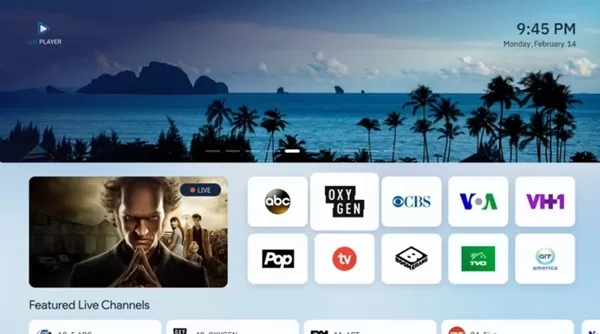
This TV App is a video player or media player that gives users the ability to watch live TV channels and on-demand content, which comes from the IPTV service provider (a 3rd-party supplier). It gives the IPTV provider the ability to deliver 1000s of live channels and 10s of 1000s of VOD movies and TV series.
What’s important to understand is that the LUX application is not a standalone app. Meaning, on its own, it doesn’t include the content such as live channels and VODs. What you do get is an LUX Player app that streamlines, manages, organizes, and helps deliver streaming content from the IPTV provider.
When the LUX App/APK connects to the IPTV servers, it generally uses an IP Lock system. See further down what this means.
APK Version of the App (Sideloading)
Some compatible devices, like the Fire TV Stick, Fire TV, Fire Cube, and NVIDIA Shield requires sideloading the APK version of the app, which can be found in the APK directly. You don’t need to go there to download. The IPTV service provider generally provides the APK URL. The Downloader app is required and must be downloaded to install the LUX Player APK version.
Sideloading is required because the LUX Player is not available in the Amazon App Store. But the Downloader app can be found there, which enables us to download and install (sideload) 3rd-party apps.
Is the LUX Player App Considered Middleware?
The short answer is, yes. Simply put, middleware is an application that sits between:
- The content provider, which is the IPTV service provider, and
- The end-user, meaning you and your streaming device
So, in essence:
- The IPTV provider delivers all the live TV channels and VOD content
- Middleware, such as the LUX media player download, organizes, displays, and streams the content delivered
- It gives the end-user the ability to navigate, access channels and VOD directories, including sub-directories, and watch the channels/VODs in them through the application
Keep in mind that middleware doesn’t own or supply any content. It’s only designed to:
- Connect to IPTV provider servers
- Display the delivery of channels and on-demand content
- Control playback, navigation menus, and user engagement
IP Lock: What Does it Mean?
When the LUX Player app is connected to the IPTV servers, it incorporates an IP lock platform, which is mainly used for:
- Prohibiting account sharing
- Protecting the IPTV provider’s servers and quality
- Preventing multiple logins simultaneously
Locked into One IP Address: What Does It Mean?
- The user’s IP address, whether at home or someplace else that has Internet service via modem/router with a unique IP address, can only connect LUX Player to the IPTV servers when locked into that location
- Connecting or logging in from another location (residence or network) will be blocked
What Happens If Your IP Address Changes?
For some end-users, the IP address could change naturally. For instance, when:
- Using a VPN service, which is not recommended for an IP Lock LUX Player streaming service
- Switching from a residential WiFi to mobile data
- Switching ISP (Internet Service Providers)
- Restarting your router
Should any of these changes occur, the IPTV provider’s system will see it as a new location and automatically put a temporary block. When this happens, the user will need to contact the IPTV service to have them do a manual reset, so the user can watch TV online again.
What’s important to know is that the LUX Player application itself doesn’t control the IP lock. The programming is set and managed by the IPTV provider. LUX simply follows the provider’s security settings.
LUX Player Developer
The developer website is available online, but it doesn’t serve those who just want to watch TV online. It’s there moreso for IPTV providers who are looking for a solution to deliver their live channels and on-demand content to customers. There is nothing for you there as a TV viewer. No app download, no payment plans to deliver live TV channels and VODs. The developer is not there to help LUX subscribers.
The sole purpose of the developer is to provide support for LUX, such as version upgrades and bug fixes. Also, to provide support to IPTV merchants (providers) who use the media player to deliver their content to their subscribers.
How to Download the LUX IPTV App
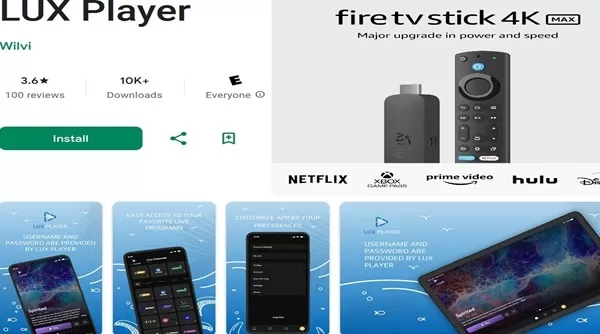
The LUX Player streaming app can be found in the Google Play Store, Apple App Store, and Roku Channel Store. There are two ways to complete the LUX Player download:
1. Built-in App Store:
- Open your compatible device and go to the internal app store
- Android Devices: Google Play Store on TV
- Smart TVs: LG Content Store or Samsung SmartHub
- iOS/Apple Devices: Apple App Store
- Roku: Channel Store
- Search for LUX Player
- Select the official app
- Select Install / Download / Get
- Let the installation finish
- Open the LUX TV app
- Activate/Log into the app ***IPTV subscription needed
2. Sideloading Using Downloader App:
For the Firestick, Fire TV, Fire Cube, and NVIDIA Shield, you must sideload the LUX Play APK version of the App. You won’t find the LUX Player app in any of the App Stores. The Amazon Fire devices mentioned above have different versions–always use the latest version.
You can follow the steps in our Install LUX Player on Firestick guide to download & install the LUX Player APK version. It includes a video tutorial as well. We covered both the Firestick 4K and 4K Max versions.
Installing the App on Supported Devices
See the ‘How to Download the App‘. There’s no sense in repeating the same thing. What comes after the download is the installation process. Both will take place automatically, one after the other.
As for the other Android-based devices that require sideloading the LUX Player application, more steps are involved. See section 2. Sideloading Using Downloader App above.
APK File and the Latest Version Explained
Is it the LUX Player APK latest version?
On the Google Play Store for LUXPlayer, the name Energen Dev appears. It is unclear if this is the developer. On the Apple App Store page, it has a seller–Ramon Duran listed.
Users of LUX don’t need the developer for anything. They just need the LUX Player TV/VOD provider.
Despite the decline in IPTV services supporting LUX, many individuals are still downloading the application and sideloading the APK version to their devices. Read the section below… “Updating the LUX Player App“.
Just know that the application only serves to help to manage and stream the content coming from the IPTV provider.
App Versions (Subject to change)…
LUX Player for Android
* Release Date: 4/15/22
* Latest Version: 3.12.389
* Last Update: 7/10/25
LUX for iOS/Apple
* Latest Version: 3.8.31
* Last Update: 5/19/25
* Size: 457.1 MB
Here is the LUX Player APK URL for Downloader: https://bit.ly/luxfiretv
Compatible Devices
- Android Devices: TV, Box, Phone & Tablet
- Other Android-Based Devices: Fire TV Stick, Fire TV, Fire Cube & NVIDIA Shield ***sideloading
- Smart TVs: Samsung & LG
- iOS Devices: iPad, iPhone & Apple TV
- Roku
Alternative IPTV Apps that Are Similar
| Feature / App | LUX Player | Nora GO | SO Player | XPlay |
|---|---|---|---|---|
| App Type | IPTV Player | IPTV Player | IPTV Player | IPTV Player |
| Provides Channels? | ❌ No | ❌ No | ❌ No | ❌ No |
| Activation Method | Username / Password / Device PIN Codes | Provider ID / Username / Password / Device PIN Codes | Same | Same |
| Firestick Support | ✅ Yes (Sideload) | ✅ Yes (Sideload) | ✅ Yes (Sideload) | ✅ Yes (Sideload) |
| Android TV Support | ✅ Yes | ✅ Yes | ❌ No | ✅ Yes |
| Apple Devices (iOS / tvOS) | ✅ Yes | ❌ No | ❌ No | ❌ No |
| Smart TVS (LG & Samsung) | ✅ Yes | ✅ Yes | ✅ Yes | ✅ Yes |
| Windows & MacOS | ❌ No | ✅ Yes | ❌ No | ❌ No |
| Roku | ✅ Yes | ❌ No | ❌ No | ✅ Yes |
| EPG (TV Guide) | ✅ Yes | ✅ Yes | ✅ Yes | |
| VOD (Movies / Series) | ✅ Yes | ✅ Yes | ✅ Yes | ✅ Yes |
| Provider IP Lock | ✅ Yes | ✅ Yes | ✅ Yes | ✅ Yes |
| Provider Device Control | ✅ Full | ✅ Full | ✅ Full | ✅ Full |
| User Customization | ❌ Low | ❌ Low | ❌ Low | ❌ Low |
| Ads | ❌ No | ❌ No | ❌ No | ❌ No |
| Payment Model | Credit/Debt Card | Same | Same | Same |
| Best For | Indoor Streaming, Not for Traveling | Same | Same | Same |
Alternative IPTV Services for Nora GO, XPlay & SO Player
There are very similar apps and IPTV services supporting those apps. One popular app, SO Player, has lost some of its popularity due to its removal from the Google Play Store and Apple App Store. No longer can it be downloaded to iOS/Apple and Android devices.
However, it can be installed on smart TVs and sideloaded to Android-based devices like the Fire TV. XPlay, on the other hand, is compatible with more devices, including the Roku.
If wanting to install the apps not compatible with Windows PCs and MacOS, you can try using an emulator such as Bluestacks or GameLoop.
How to Update the App Safely
Simply go to one of the App stores for your device for the app download, which should have the latest version.
- Apple App Store: The last version update for this app is listed as 05/19/2025
- Google Play Store: Last version update was 06/10/25
- Roku Channel Store
Those are fairly recent dates you see above, but you’ll have to check those two app stores later to see if there are any version updates. If they do get updated, then you should get the latest update version–it should be in your device’s internal app store also.
The LUX in the Roku Channel Player doesn’t have much information, let alone any release date or version upgrade date.
Basic Setup Installation
What We Recommend
- Identify IPTV Service Website: Before downloading any IPTV app, the IPTV service should be known first. You don’t want to install an app and then later try to find an IPTV service that supports the app. We made this part easy for you by posting the links throughout this article to visit the ideal LUX Player TV service website. You can find one here to get a plan to use the LUX Player app to watch TV online
- LUX Download: It’s best to download the application to make sure it installs without issues before getting the trial or paid plan. If there are no issues, then take the next step…
- Register for IPTV Service: To get the activation/login credentials to activate and use the app to access channels and VOD to watch
- Activation/Start Watching: Open the LUX Player media player and enter the LUX Player login details to activate the player to watch your favorites
Wrapping Up
It’s fair to say that this IPTV application has gained some popularity in the TV app industry and has become a simple, effective media player, particularly for those who put a premium on broad device compatibility, easy-to-understand navigation, and a clean interface.
Although the app download has served well as a reliable middleware, it doesn’t come with its own content. It has helped IPTV providers streamline the delivery of live TV channels and on-demand videos to the app.
Be that as it may, the key factor is the ongoing support from the IPTV provider and developer. When using this media player, time will tell whether or not the application and the APK version are still supported. Both versions can still be downloaded and installed successfully, and are supported by a few providers.
The IPTV service that we recommend still supports the LUX TV player app, which continues to perform well. Subsequently, it remains a functional option. Like to learn more?… Read our full LUX Player review.