Are you searching for the XPlay sign-up, or the XPlay Provider ID, Username, or Password, because you lost them after registering with a streaming TV/VOD service? Or, is it because you haven’t registered yet and don’t know where to get the XPlay login details? We’ll cover both so that you can get set up as quickly as possible.
The Provider ID is required to activate XPlay to watch TV online. After your XPlay sign-up, you get the activation/login credentials, which include the ID. So to answer both questions, I will approach this in two ways. Check out our updated guide on the XPlay App for Firestick.
You should know that the Provider ID for Samsung, Roku, and other compatible devices is the same. That’s only one part of it. You also need the Username and Password, including the Device PIN Codes. In the end, I’ll lead you to the ideal streaming TV/VOD service to get what you need.
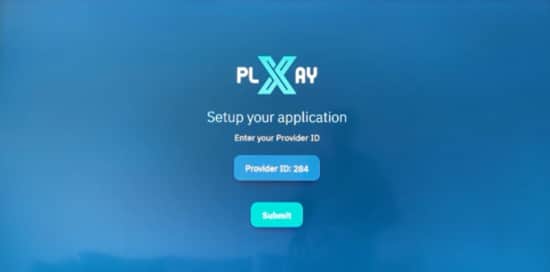
The XPlay App Provider ID comes from the XPlay streaming TV/VOD service. You must have the right 3-digit number to enter into the app. This is part of the activation/login process. If you are trying to find the ID without the streaming TV/VOD service, then you are going about this the wrong way.
What is XPlay Provider ID?
The provider ID is what identifies the streaming TV/VOD service from which all the streaming content comes. It’s usually a 3-digit number that you enter into XPlay and is part of the activation/login credentials. You cannot plug in any number or any other IPTV service provider ID. The ID comes with the trial or subscription you enter into.
How to Find Your XPlay Provider ID
It’s interesting how individuals lose or can’t find the provider ID, which comes from being unorganized. After registering for the trial or subscription at the IPTV service website, you get access to the activation/login credentials right away. This includes the Provider ID. Check your email or Spam if you don’t see the emails that come from the IPTV service where you registered.
Create an email folder and put all emails from the IPTV service in it. Be sure to save it somewhere so that you can find it later. It’s very important to remember your IPTV service provider. Bookmark/save their website so that you have another way of finding them.
How to Log Into XPlay: Step-by-Step Guide
- Install XPlay: Download the app onto a compatible device
- Register at the IPTV service website for the trial or subscription
- Get your activation/login credentials via email — includes the Provider ID, Username/Password, & Device PIN codes
- Enter your credentials into XPlay
- Start watching live channels and VODs
Troubleshooting XPlay Login and Password Issues
It’s important to enter the correct login details (credentials). Get any of them wrong, such as the password, and you will get an error message. If your trial or subscription has ended, you won’t be able to log in anymore. If you see an unfamiliar error code when trying to login, then the best thing to do is contact your IPTV service support.
The most obvious thing to do is to make certain that you have an Internet connection. You cannot use a VPN service because this is an IP Lock system you are using. You can’t change your IP address, so a VPN cannot be used.
Make sure it’s turned off if you have one. Check your device. Try clearing the TV app data and cache. Lastly, check with your IPTV service to find out if the XPlay login issue is on your end or their end.
How to Sign Up for XPlay and Get Your Provider ID
After installing XPlay on your compatible device, it time to get the XPlay Provider ID and parts of the activation/login credentials. You simply visit the ideal IPTV service website–choose any one of the links below and save the others. The ID comes with the trial or subscription when registering for it. Simply choose one of the other to complete the registration process.
There can be a low-cost trial or free trial, and one or more subscription plans, depending on which XPlayer IPTV service you choose below.
Understanding the XPlay Login Code
The XPlay login code could be understood as either the Device PIN codes or another part of the activation/login credentials. You get several PIN codes, one per device you want to connect to the TV/VOD service/servers. The PIN code identifies the device where XPlay is installed. You may be allowed 4 or more PIN codes, which tells the number of device connections you have and use at one time.
Free XPlay Provider ID: Is It Possible?
This is indeed possible, but it depends on which XPlayer IPTV service you choose. You’ll know when scrolling further down to see which IPTVs have the low-cost trials and free trials.
Why is XPlay Provider ID Important for Logging In?
Without it, you get nowhere. It’s the first part of the credentials that you must enter into XPlay. This identifies the IPTV provider that delivers all the streaming content. Also important is entering your username and password. If connecting multiple devices, then that’s where the device PIN codes are needed.
Common Problems with XPlay Login and How to Fix Them
When troubleshooting an issue, you must try to determine if that issue is coming from your end first. Don’t just contact the IPTV service support right away, especially if things were working and then all of a sudden stopped working. Try to recall if you made any changes on your end, such as using a new or different device. Using the same PIN code on a different device, which you cannot do.
If you see an unfamiliar error code message, contact the IPTV service support for help. See if something has gone wrong on their end. But make sure you entered the correct XPlay login details.
In the following, choose the section below that fits you — first-timer or not first-timer…
First-Timer, Have Not Registered Yet
Whether or not you have already installed the XPlay app/apk, you can’t watch any live channels or VOD movies/TV series. You must undergo the XPlay sign-up registration to get the activation/login credentials to activate the app. I said earlier that the Provider ID is just one part. The other part includes the Username and Password, including Device PIN Codes (XPlay login).
This is the only way you can use XPlay to watch TV online. Any other way, you are wasting your time. The IPTV services (hence: streaming TV/VOD services) that I’m recommending will offer a 3-day free trial or a low-cost trial. You can choose a one-month plan or a 3-month plan, depending on which IPTV service you choose below…
If you are new, it’s very important to remember the name of the streaming TV/VOD service that I am recommending. Everything starts and ends with the service, not the app. Know where to find their website and when to renew the service plan or get support.
Organization
Many individuals fail at being organized, and this is the reason why they end up lost and confused. They can’t find the emails sent by the streaming TV/VOD service. They don’t remember the brand name or where the website is located. You must do better by saving all emails received from the IPTV service and remembering where you put them. You should also bookmark the IPTV service website.
Be sure to check your Junk/Spam mail folder for emails that are important and move them into your regular email inbox. Never go online searching for help or support from other websites. The same thing applies when looking in the wrong place to renew the service plan. Simply return to your streaming TV/VOD service where your account is located.
XPlay Sign Up / My Account
You can register and get a free account without entering into a free trial or paying for a service plan. But when you do get the trial or service plan, you will be taken to the web page with your account/invoice/order information. This information will also be sent to you via email. Either way, this is how you get access to the activation/login credentials, which include the Provider ID.
At the time of registration, you must enter your email address, create an account username, and password. I advise writing all of this down on paper or somewhere. You will find the ‘My Account’ link on the streaming TV/VOD website that I’m recommending.
Just log in with your details, username (email address), and password. If you lose the pass, simply click the link to reset the password and look for the email. Inside ‘My Account,’ all your information is there, including the XPlay login details, which have the XPlayer app Provider ID. You can also renew the service plan in that account.
What is the XPlay app?
Call it an IPTV app or middleware that’s free to download and install on any compatible device. XPlay is used to deliver 100s of live channels and 1000s of VOD movies and TV series. It works with the IPTV service servers seamlessly, which also helps organize all the streaming TV/VOD content delivered.
The technology makes it a very good app that mirrors the Nora GO app. You get fast streaming when playing live channels and VODs. Good overall performance and navigation, whereby the interface is also seamless. The app works to bring streaming content across your IP address.
The IP Lock system only allows the use of one primary IP address in your household. You cannot take your compatible device with the app installed to another person’s household with a different IP address and expect to watch your favorites. Therefore, you can’t use a VPN service or share your account with other individuals.
Not First-Timer: Already Registered with XPlay Streaming TV/VOD Service
When referring to the XPlay streaming TV/VOD service, this is not the brand name that I’m talking about. No doubt you already registered and paid for a service plan or opted into a free trial. This means you already have an account. That account is at the IPTV service website, whatever the brand name is that you need to go back to.
If you lost your way, meaning you cannot find the IPTV service emails sent to you, don’t remember the brand name of the service, or where to renew or get support, then you need to start over. What I mean is finding another XPlay IPTV service to get a new set of activation/login credentials, which includes the XPlay Provider ID.
You can try looking for your emails in your regular email inbox or Junk/Spam mail folder. Try going to your web browser’s History to find the URL (link) to your IPTV service website. You can also try looking in your ‘Sent’ folder in the left column of your email account. If all fails, then you should register below…
Recommended Streaming TV/VOD Service to Get the Provider ID and Other Activation/Login Credentials
I tested and reviewed a few top XPlay IPTV services and have given them a high rating. You can go through the XPlay sign-up when opting into the free trial or paying for the service plan. Either way, you’ll get the XPlay Provider ID and other XPlay login details
Choose the IPTV Service below to Get the Trial or Subscription, and Activate
Tesla (XPlay & Nora GO) | Read Review
***Includes low-cost trial
Cloud Horizon (NoraGO & XPlay)
***Includes low-cost trial
Tomorrowland
***Includes free trial
Play by Play
***Includes free trial
Closing Remarks
The most essential part of this guide shows that knowing how to navigate the XPlay TV player. This includes knowing how to find your Provider ID, which is part of the activation/login credentials. These are means of enjoying the platform’s features.
Should you encounter some kind of issue with your login, check your end first. And if you can’t resolve the issue, XPlay IPTV service support is just a click away.
I have addressed both reasons why you may be searching for the XPlay Provider ID, which is part of the XPlay login details. But understand that whatever TV app is installed, there’s usually more than one streaming TV/VOD service website where you can get the activation/login credentials.
I made this easy when providing for top XPlay sign-up IPTV services, where you can choose one to register and save the other.