If watching live TV channels, VOD movies/TV series on your Roku device is something you are trying to do, I will show you how to set up IPTV Smarters on Roku with all the steps. Just follow the instructions to install the application and connect the recommended IPTV service to start watching your favorite channels and VODs.
It doesn’t matter if you are using a Roku Streaming Stick or Roku TV, you will be taken through the IPTV Smarters Roku setup guide to complete everything. This includes how to find the MAC address and Device ID, get the 7-day trial, and activate the application via the IPTVActivation.com website.
This will also explain what happens when the trial ends and what you can do to continue using the IPTV Smarters Pro app when purchasing the 14.99 EUR lifetime activation. Then I will cover the recommended IPTV service to get the subscription to access live channels, VOD movies, and VOD TV series.
So if you are searching for a reliable way from someone who has helped many newcomers, you’re in the right place. With that said, let’s get you set up now.
NOTE: If you already have the TV APK/App installed on your device and just need the recommended Streaming TV/VOD service subscription to watch TV online, Go Here.
One Important Note
The following needs to be addressed: Roku’s official support documentation covers screen mirroring, while IPTV Smarters Pro is not a standard Roku Channel Store app. Roku also does not support installing Android APK files. However, many users are using this setup to get access to the streaming content they love.
There is a compatibility/configuration issue when installing the IPTV Smarters app on the Roku TV or Streaming Stick. Some channels won’t play and will show a No Signal screen. But you can still use this setup if you want. Just make note of the issue.
We recommend using a different compatible device, such as the Fire TV Stick 4K or 4K Max version. Do not buy the new Fire TV Stick with the Vega operating system. We were informed that it will not allow you to download/install any APK files such as IPTV Smarters Pro, Tivimate, and other supported TV APKs when using the Downloader app.
Also see IPTV Smarters Firestick
Buy/Use Fire TV Stick 4K Plus or 4K Max
NOTE: Do not buy the Firestick TV Stick 4K Select that uses the Vega OS. It will not allow you to install APK files such as IPTV Smarters Pro, Tivimate, etc.
What Is IPTV Smarters Pro and How Does It Work on Roku?
You must first understand that the IPTV Smarters app is a sophisticated media player designed to organize, streamline, and stream live channels plus VODs coming from the IPTV provider. This is done through a very simple, user-friendly platform or interface. What is IPTV on Roku simply allows you to use the IPTV Roku app such as IPTV Smarters to access your favorite TV channels and on-demand content. See IPTV Smarters in the Roku Channel Store.
Now, let’s cover IPTV, which stands for Internet Protocol Television. Simply put, it delivers television streaming content via an Internet connection instead of traditional satellite, cable, or FiOS service. With a top IPTV service and supported IPTV application, users can access 1000s of live TV channels with TV shows, news, movies, and sports, as well as on-demand content.
But there’s one important thing to know. No IPTV app, including IPTV Smarters Pro, comes with any TV or VOD content when installed on any compatible device, including the Roku. Again, it only works as a media player that connects to the IPTV service servers when using Xtrema Codes or a Playlist URL to log in and use the application.
There are many options for users to enjoy Roku live TV and watch TV on Roku using our setup, alternatives, and the recommended IPTV service.
Compatibility
When using the Roku, there’s an important compatibility limitation: IPTV Smarters Pro doesn’t have a verified native Roku application. Roku has its own OS (operating system), and therefore Android applications can’t be installed directly on any Roku TV or streaming device. However, users, including myself, were able to installed what could be either the original IPTV Smarters Pro app or a separate Roku-compatible application.
If you have a Roku-connected television, you can connect the Firestick 4K or 4K Plus or 4K Max version via HDMI port on the back of the Roku TV. Then install the Downloader app to sideload IPTV Smarters Pro, Tivimate, or any compatible IPTV application.
Alternatives
Some alternatives can be used, such as supported screen mirroring options, compatible Roku media player channels, or an external Android TV that supports IPTV Smarters Pro. There’s no need to go into all the alternatives, because we know that IPTV Smarters on Roku does work. Connecting a Firestick 4K Plus or 4K Max might be the best option when connected to the Roku TV.
What You Need Before Installing IPTV Smarters on Roku
We will now cover the following:
- IPTV Smarters Roku setup
- IPTV on Roku TV
- IPTV on Roku Stick
- IPTV compatible with Roku
A Compatible Roku TV or Roku Streaming Stick
You should try to use the latest Roku TV or Roku Streaming Stick OS (operating system). If you have an old version or OS, it might not work as well, if at all, when installing the IPTV Smarters app.
A Stable Internet Connection
For the IPTV Smarters Roku setup to work with an IPTV app and IPTV service, it’s important to use a fast Internet connection. To stream at all resolutions, using more than one device connected, or when more people are online using the same ISP (Internet Service Provider) you’re using, a minimum of 100 Mbps connection speed would be ideal.
IPTV Smarters App and Activation Website
To complete the IPTV on Roku TV setup, the IPTVActivation website is where you go to enter your device MAC address and Device ID. This comes after you download and install the IPTV Smarters app. When opening the app the MAC address and Device ID appears and this will be the login details used to login. Make sure you write down the MAC address and Device ID, you will need it later.
Once you login, you enter the, click/select the Playlist Management button. Then click/select the Add XC Playlist link. There you will see black fields to enter the following…
- Playlist Name
- URL (Host Name)
- Username
- Password
NOTE: You will receive the URL (Host Name), Username, and Password from the recommended IPTV service when you pay for the low-cost trial or one of the subscription packages. They are IPTV compatible with Roku. You follow the same steps whether you are using the IPTV on Roku Stick or Roku TV.
If you have the 7-day free trial, this is all you need to do for now. If you don’t get the trial, then you must also click/select the Activate Device button to purchase the 14.99 EUR lifetime fee. The the entire process with steps can found. See the section below called How to Download and Install IPTV Smarters on Roku to follow all the steps.
How to Download and Install IPTV Smarters on Roku
The following will cover all the IPTV Smarters on Roku download steps. Then you will use the recommended IPTV service to enter the low-cost trial and select one of the subscription packages. They will send you several emails. One email will have the TV login details and other information. But we highly recommend you complete the IPTV Roku app download first to make sure there is no installation issue.
Step 1 – Turn On Your Roku Device, Find & Add Channel
- On your Roku device: Go to Home >> Streaming Channels >> Search Channels
- Search for IPTV Smarters Pro
- Select it, then select Add Channel
- Once installed, open the IPTV Smarters Pro app on your Roku
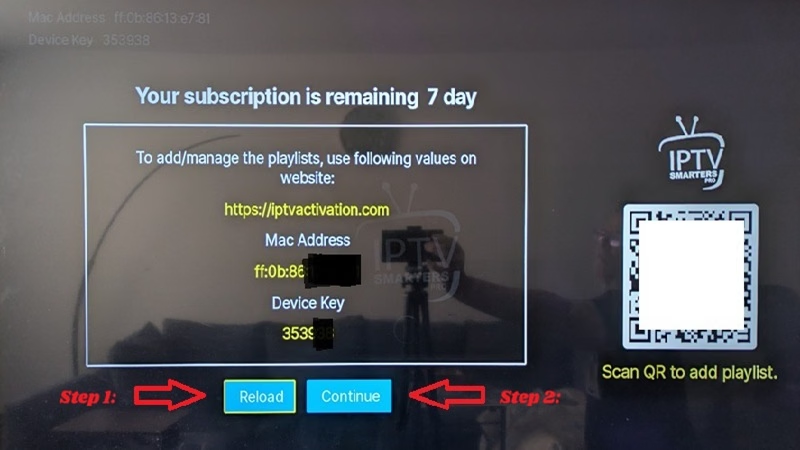
- On screen, a website URL, MAC Address, and Device Key will appear
- Write down the website URL (https://iptvactivation.com), MAC Address, and Device Key
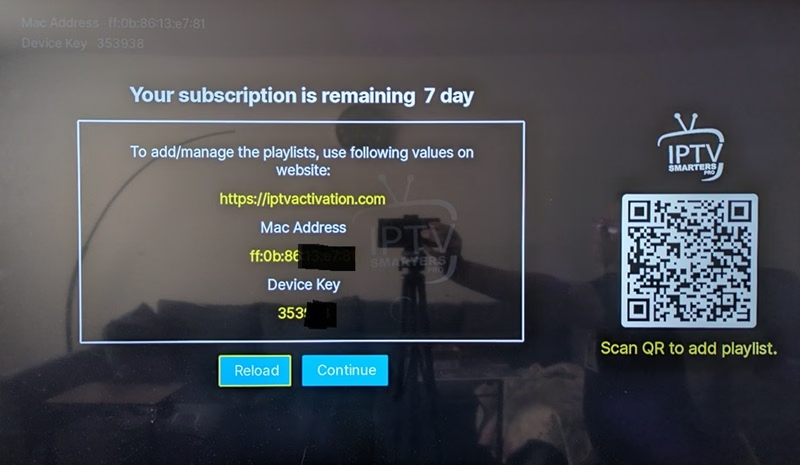
NOTE: If first time user, you get a 7-day trial before paying for the low-cost subscription
Step 2: Visit the IPTV Activation Website
- On a browser (PC, tablet, or phone), go to: https://iptvactivation.com
- Enter your MAC Address and Device Key (see Roku screen)
- Click/Select the Login button
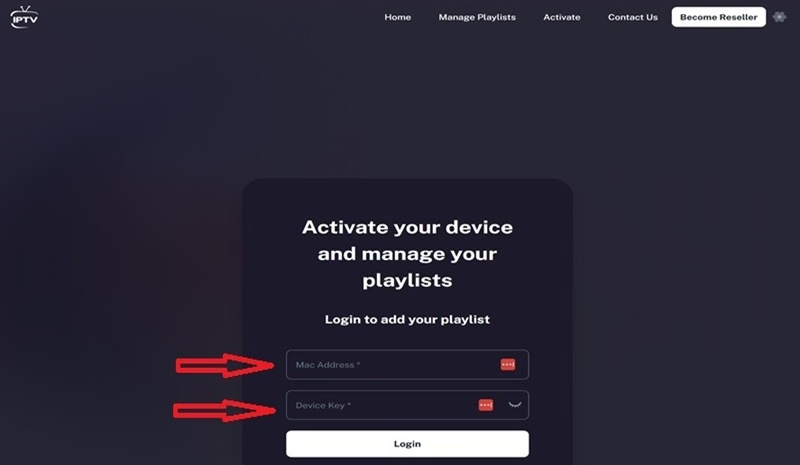
After Login…
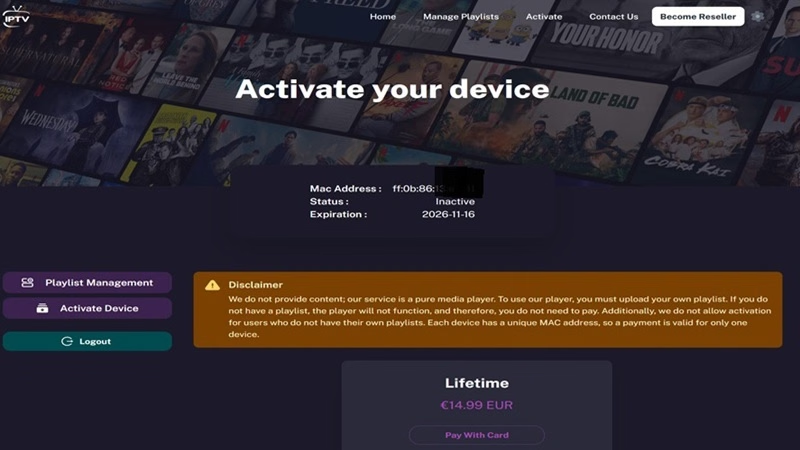
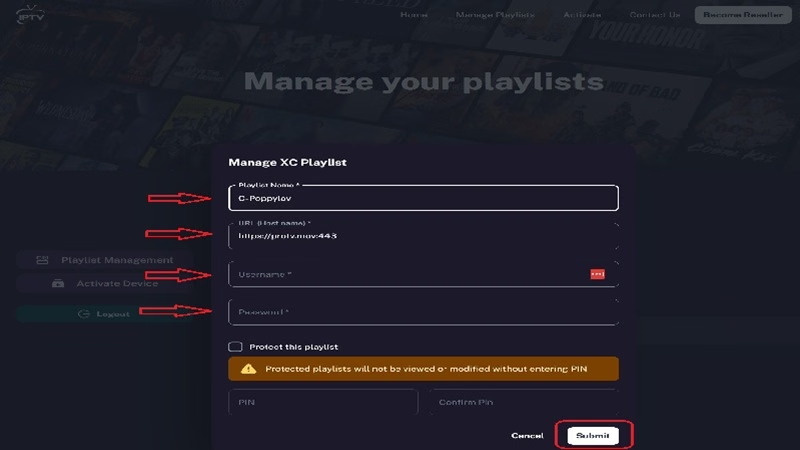
Step 3: Add Your IPTV Playlist (XC API)
- After logging in, click/select Playlist Management
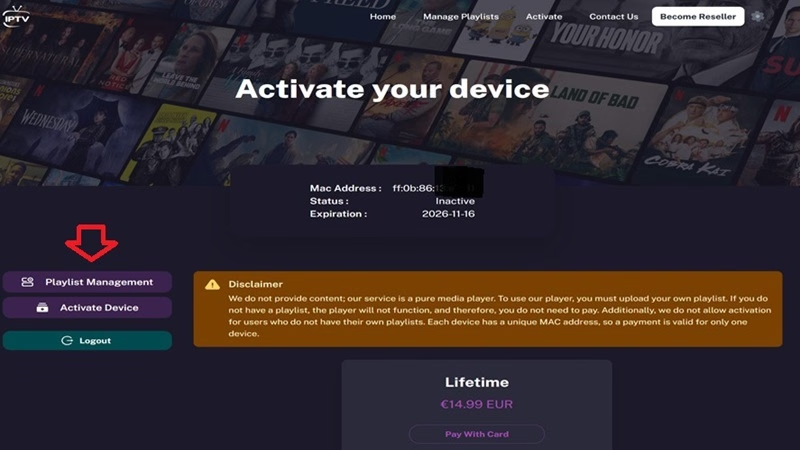
2. Select Add XC Playlist
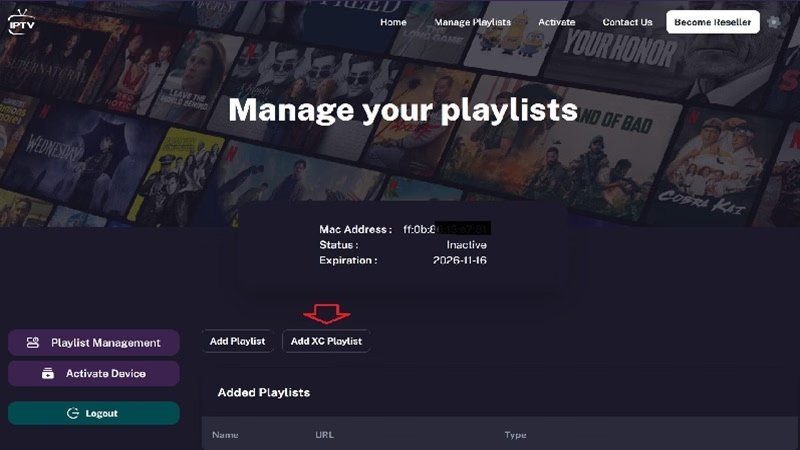
3. Enter the following details:
- Playlist Name: C-Poppylov ***Or enter any name you want
- URL (Host Name): https://protv.mov:443 *** Found in ‘Your IPTV Service Info’ email
- Username: (Your Username) ***Found in ‘Your IPTV Service Info’ email
- Password: (Your Password) ***Found in ‘Your IPTV Service Info’ email
4. Click/Select the Submit button
Step 4: Reload or Continue IPTV Smarters on Roku
- Return to the IPTV Smarters Pro app on your Roku
- Select the ‘Reload’ button, and then select the ‘Continue’ button
- Your playlist C-Poppylov should now be loaded
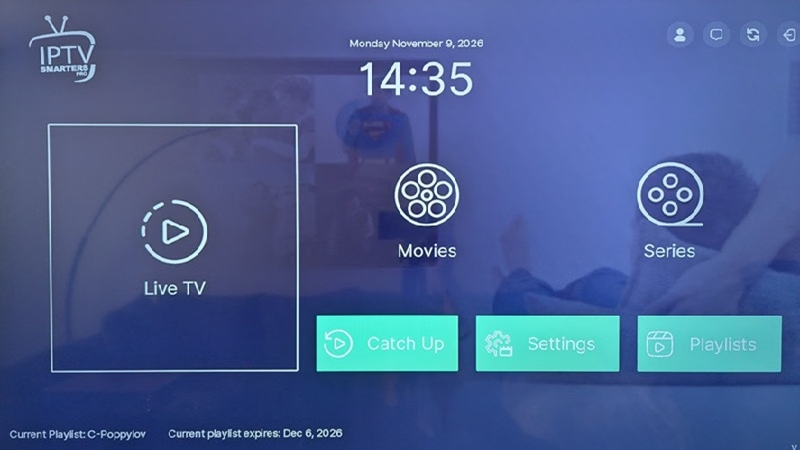
- IPTV Smarters on the Roku should now appear and connected to the Streaming TV/VOD service to watch TV online
IPTV Smarters Pro – Home Screen
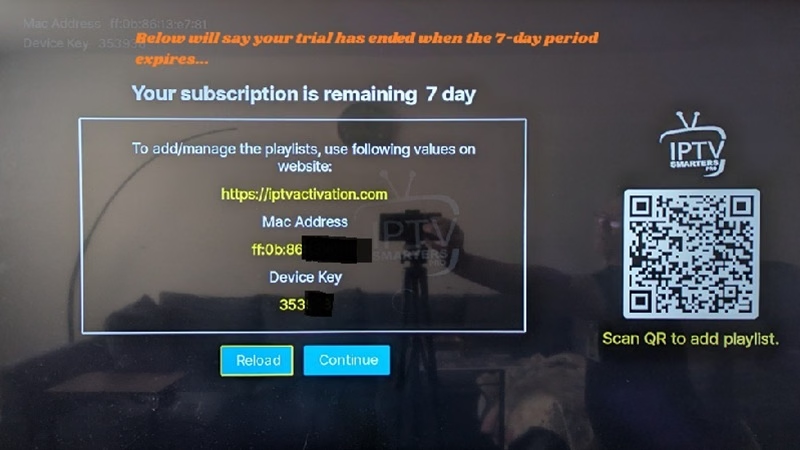
NOTE: When your 7-day trial ends, you must go back to the https://iptvactivation.com website to buy a Lifetime to continue using IPTV Smarters Pro. The Status will say ‘Inactive’. You must need to enter your MAC Address and Device ID again to log in.
Select the ‘Activate Device’ button to pay the 14.99 EUR with your credit card.
7-Day Trial Ended – Time to Pay Lifetime Fee
If you were using the 7-day trial and it expired, you will need to follow the steps below if you want to keep using IPTV Smarters and the IPTV setup on Roku.
Step 1: Visit the IPTV Activation Website
- On a browser (PC or phone), go to: https://iptvactivation.com
- Login with your MAC address and Device Key
- Click the Login button
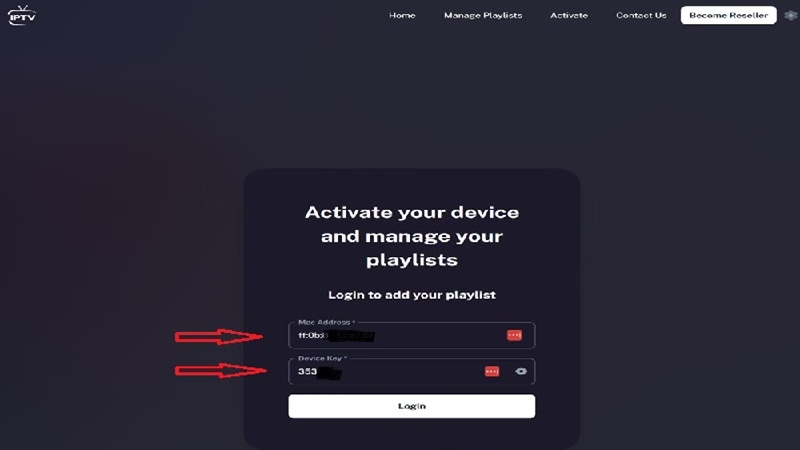
Step 2: Activate Your Device
- If you don’t already see the Activate your device page, hit the activate Device button. Notice that you see Status as Inactive.
- Click the Pay with Card button
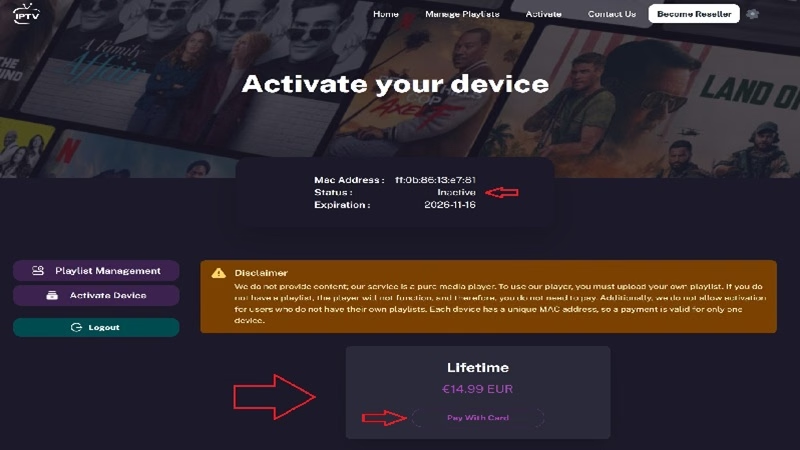
Step 3: Proceed with Payment
- On the next page, click the box for ‘By clicking below…’
- Click the Pay button
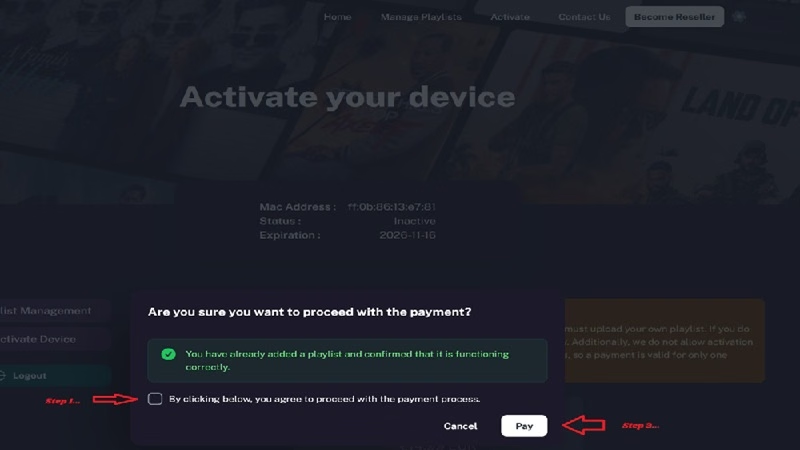
Step 4: Pay Lifetime Payment
- Enter your credit/debit card information
- You can check or uncheck the box to save my information
- Click the Pay button
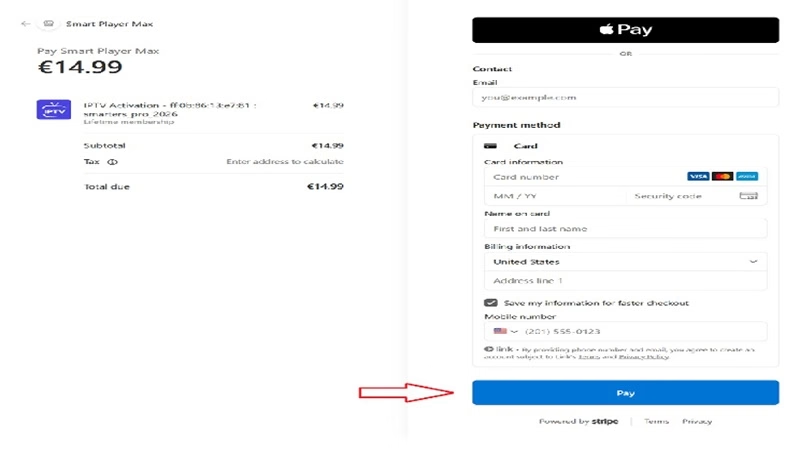
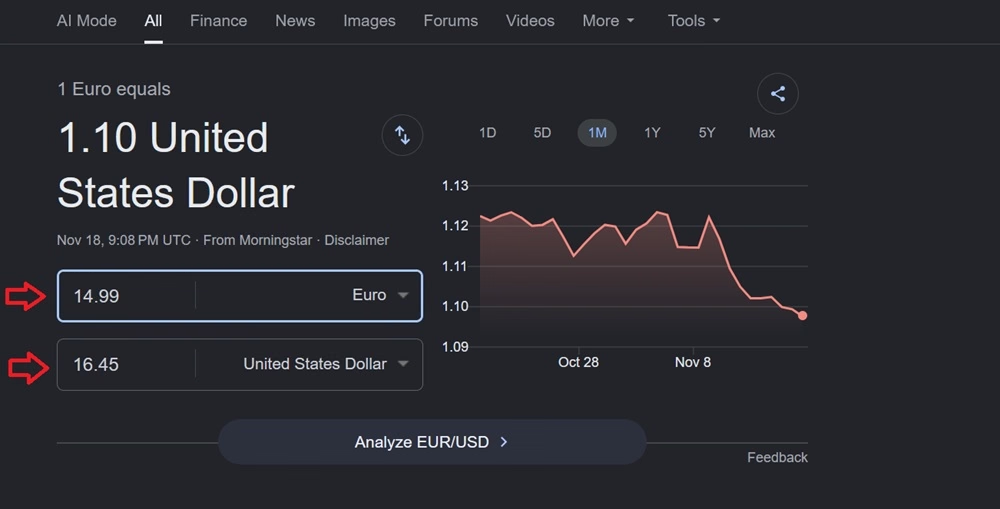
You can convert EUR to your country’s currency using an online converter. See USD below…
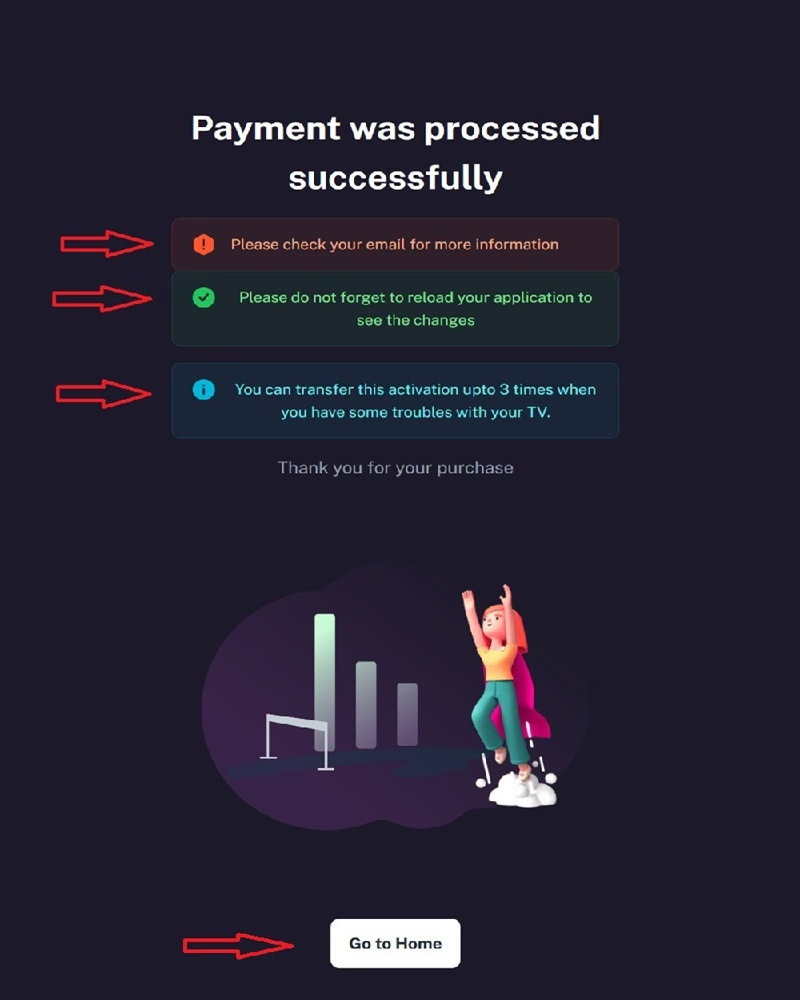
Step 5: Payment was Processed
- On the next page, you will see ‘ Payment was processed successfully. Be sure to read what’s there
- You can click the Go to Home button if you want
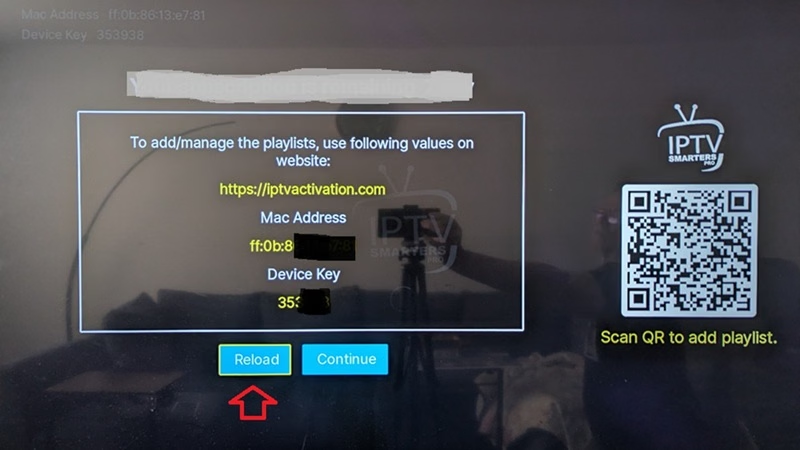
Step 6: Roku Device Screen
- Go back to your Roku device screen
- Select the Reload button
Step 7: IPTV Smarters on Roku
You should now see the IPTV Smarters Pro home screen on your Roku streaming stick or Roku TV. You are now ready to use the app to watch TV online if you have already logged into the app with the IPTV service activation/login details.
Remember, you get the IPTV activation/login details from the IPTV service after you pay the low-cost trial or one of the subscription packages.
Recommended Streaming TV/VOD Service
Whether you want the IPTV Smarters on Roku setup, Fire TV Stick setup, or want to use a different compatible device or another supported TV APK/App, no live channels and VODs come with the TV APK/App when installed. You must get a trial or subscription from a Streaming TV/VOD service that delivers all the live channels and VOD movies/TV series. For that, we Recommend Visiting C-PoppyLov TV or reading the Full Review Here.
Conclusion
If going through the setup guide above, you see that setting up IPTV Smarters on Roku isn’t complicated when following the steps. You can install the IPTV Smarters Pro app on your device, locate both the MAC Address and Device ID, and complete the easy activation process through the website at IPTVActivation.com. Next, you know where to go to connect the recommended IPTV service to start watching your favorites online.
Just remember that you can start with the 7-day free trial to test everything before paying the lifetime fee of €14.00. Once the IPTV Smarters app is connected to the IPTV servers, you will be able to explore 1000s of TV channels and on-demand movies/TV series. This can be on your Roku TV or Roku Streaming Stick.
The recommended IPTV service for Roku gives you optionality over other IPTV services with a great library of streaming TV, movies and TV series content coming from your homeland. This includes features like No IP Lock, Add Channels and Videos to Favorites, Multi-screen, etc. This will have a great impact on your Roku setup to watch TV online.
In the end, this IPTV Smarters Pro on Roku setup guide should help you get everything set up in no time and start watching IPTV on Roku.